> ## Documentation Index
> Fetch the complete documentation index at: https://docs.pearcheck.com/llms.txt
> Use this file to discover all available pages before exploring further.
# Getting Started
Welcome to PearCheck – your AI-powered platform for verifying customers and businesses.
This guide walks you through key tasks in the web portal: generating links, uploading IDs, and
capturing selfies.
## Getting Started
### Access the Portal
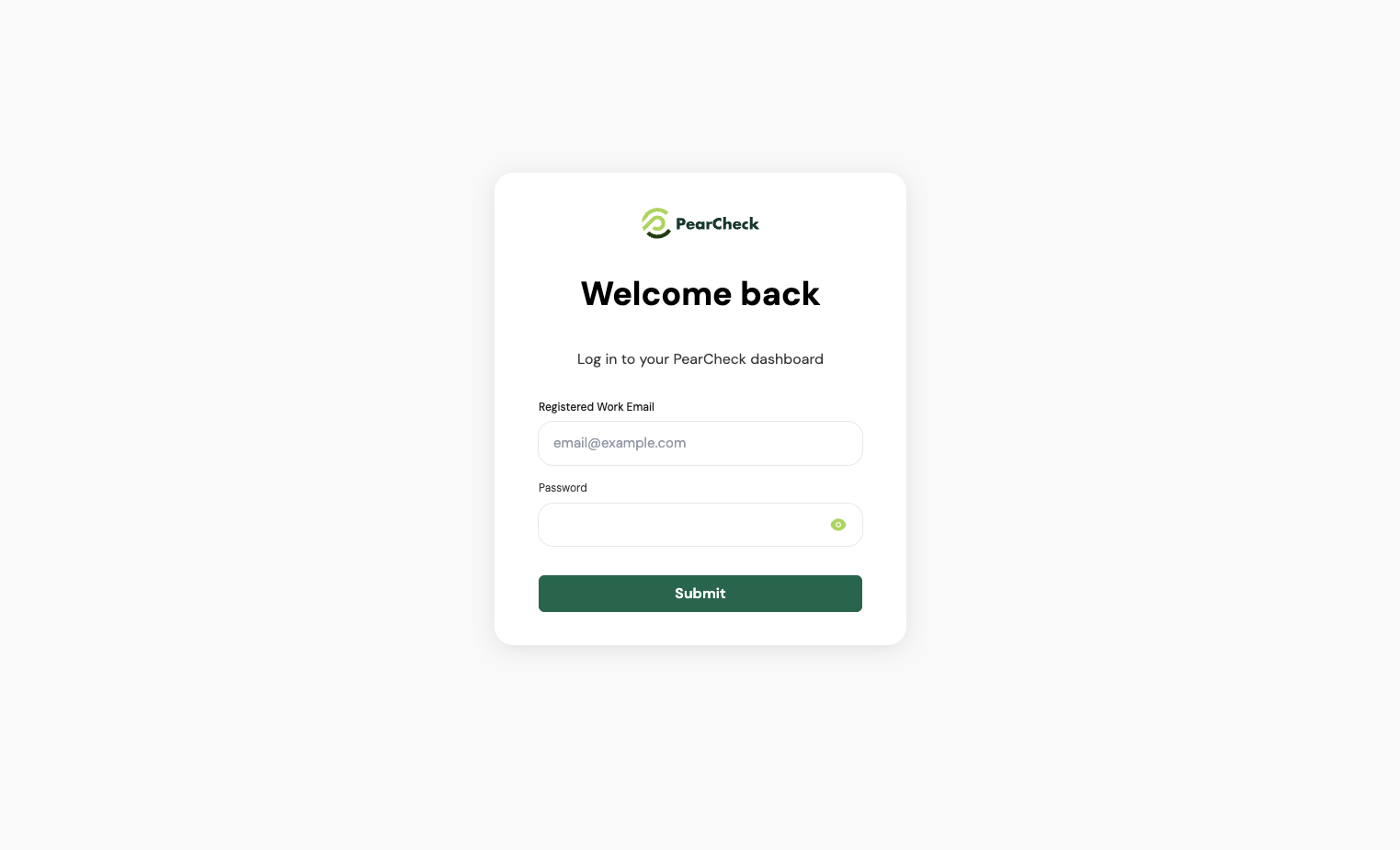
1. After onboarding, check your email (including spam) for a password setup link from [noreply@pearcheck.com](mailto:noreply@pearcheck.com).
2. Go to: [https://app.pearcheck.com](https://app.pearcheck.com) and log in with your registered account
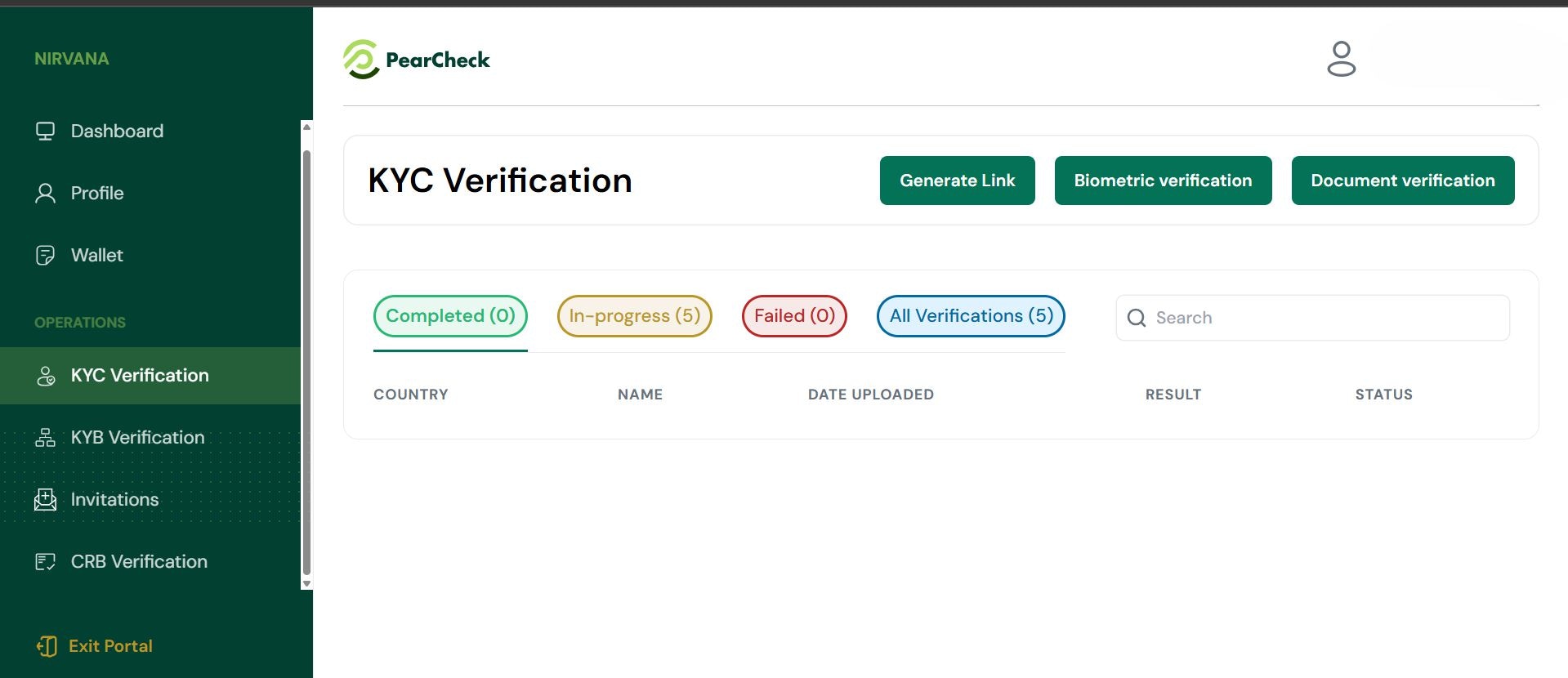
 Once logged in, you'll land on the **Dashboard**. Use the sidebar to access key sections:
1. **KYC Verification** – for verifying individuals
2. **KYB Verification** – for verifying businesses
3. **CRB Verification** – for checking credit status
Once logged in, you'll land on the **Dashboard**. Use the sidebar to access key sections:
1. **KYC Verification** – for verifying individuals
2. **KYB Verification** – for verifying businesses
3. **CRB Verification** – for checking credit status
 ### Generate a Verification Link
You can send users a link to complete document or biometric verification
Steps:
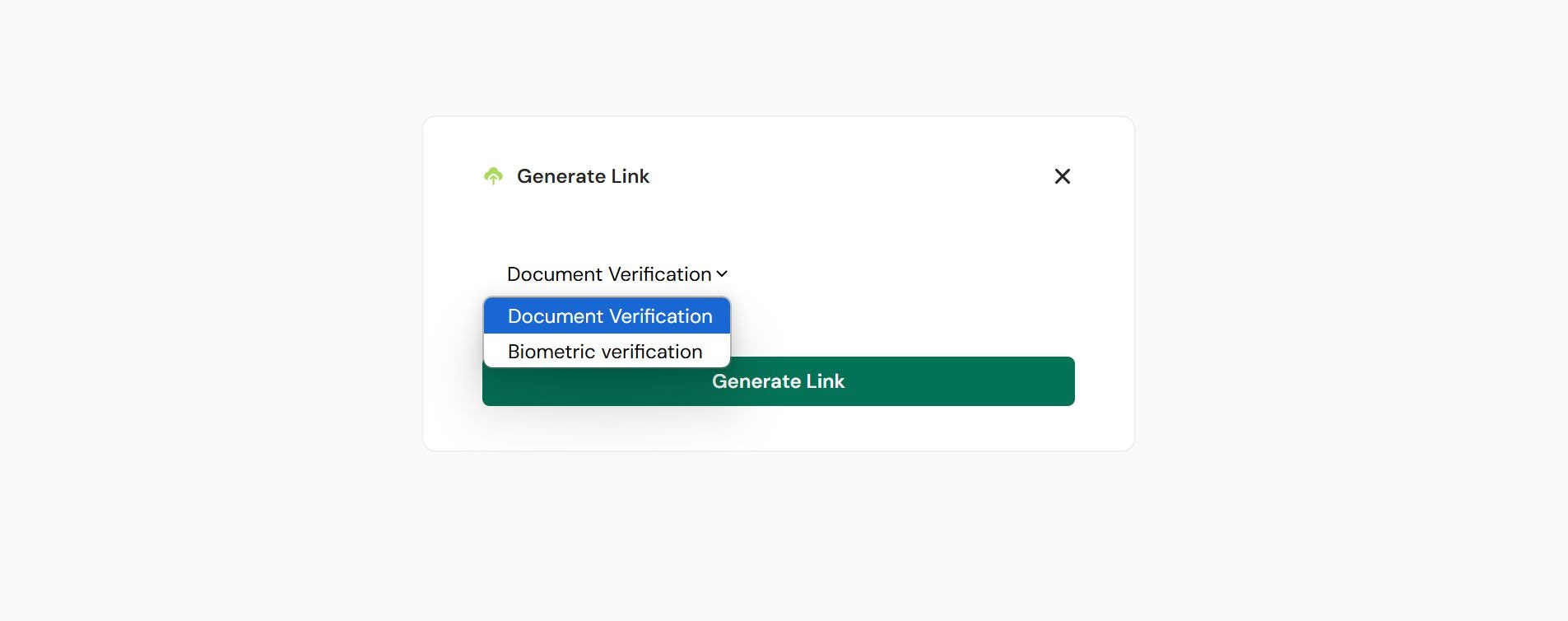
1. Go to **KYC/KYB Verification** from the sidebar.
2. Click **Generate Link**.
3. Choose the type: **Document Verification** or **Biometric Verification**.
4. Click **Generate Link**.
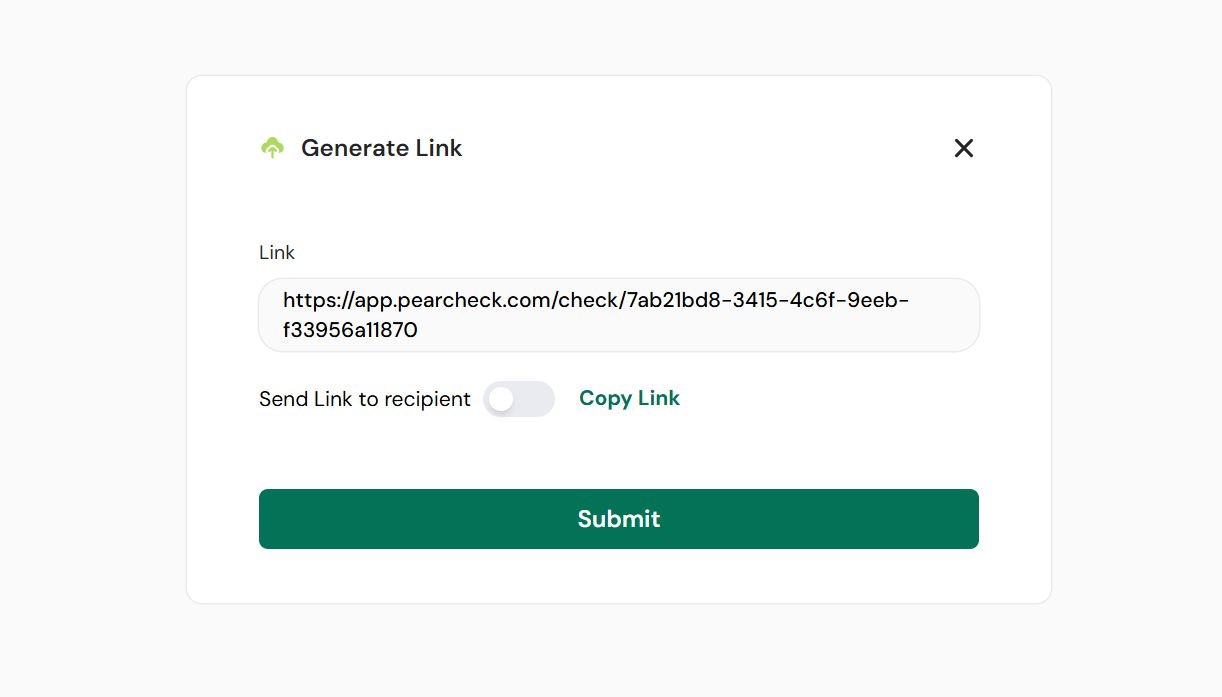
5. Copy the generated link or toggle **Send to recipient** to have it sent directly.
Use this when you're onboarding users remotely.
### Generate a Verification Link
You can send users a link to complete document or biometric verification
Steps:
1. Go to **KYC/KYB Verification** from the sidebar.
2. Click **Generate Link**.
3. Choose the type: **Document Verification** or **Biometric Verification**.
4. Click **Generate Link**.
5. Copy the generated link or toggle **Send to recipient** to have it sent directly.
Use this when you're onboarding users remotely.
 ### Upload an ID Document (Document Verification)
You can verify a user by uploading their ID directly.
Steps:
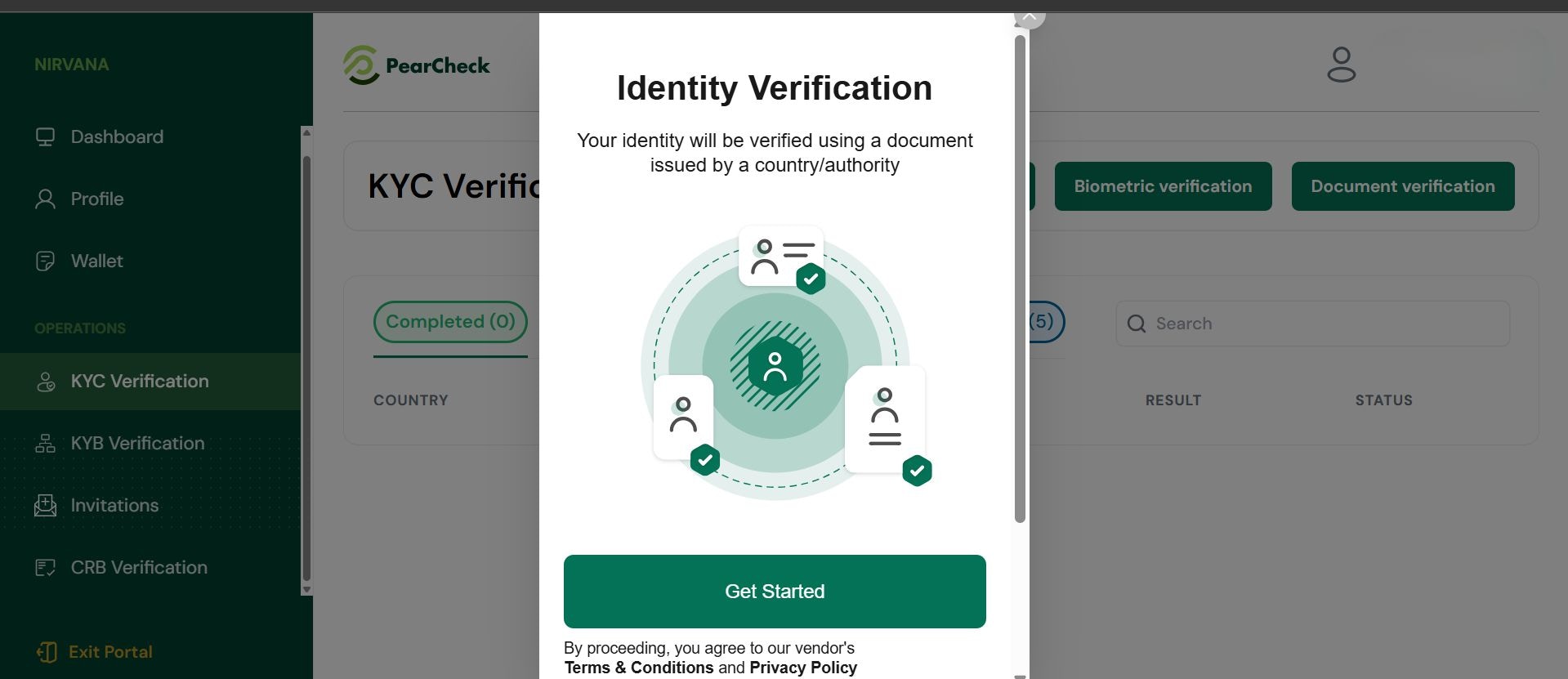
1. Click **Document Verification**.
2. Click **Get Started** on the pop-up.
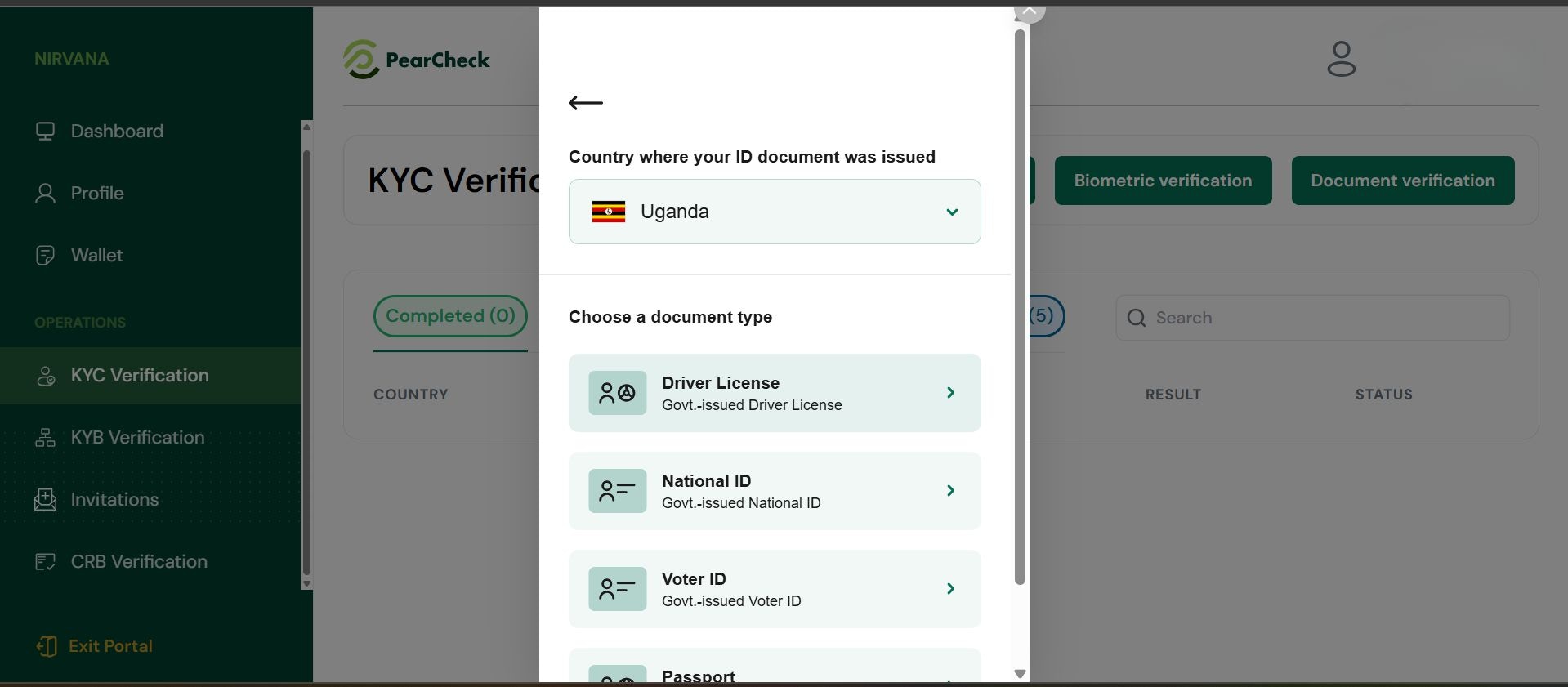
3. Choose the user’s **country**.
4. Select the **document type** (e.g., Passport, National ID).
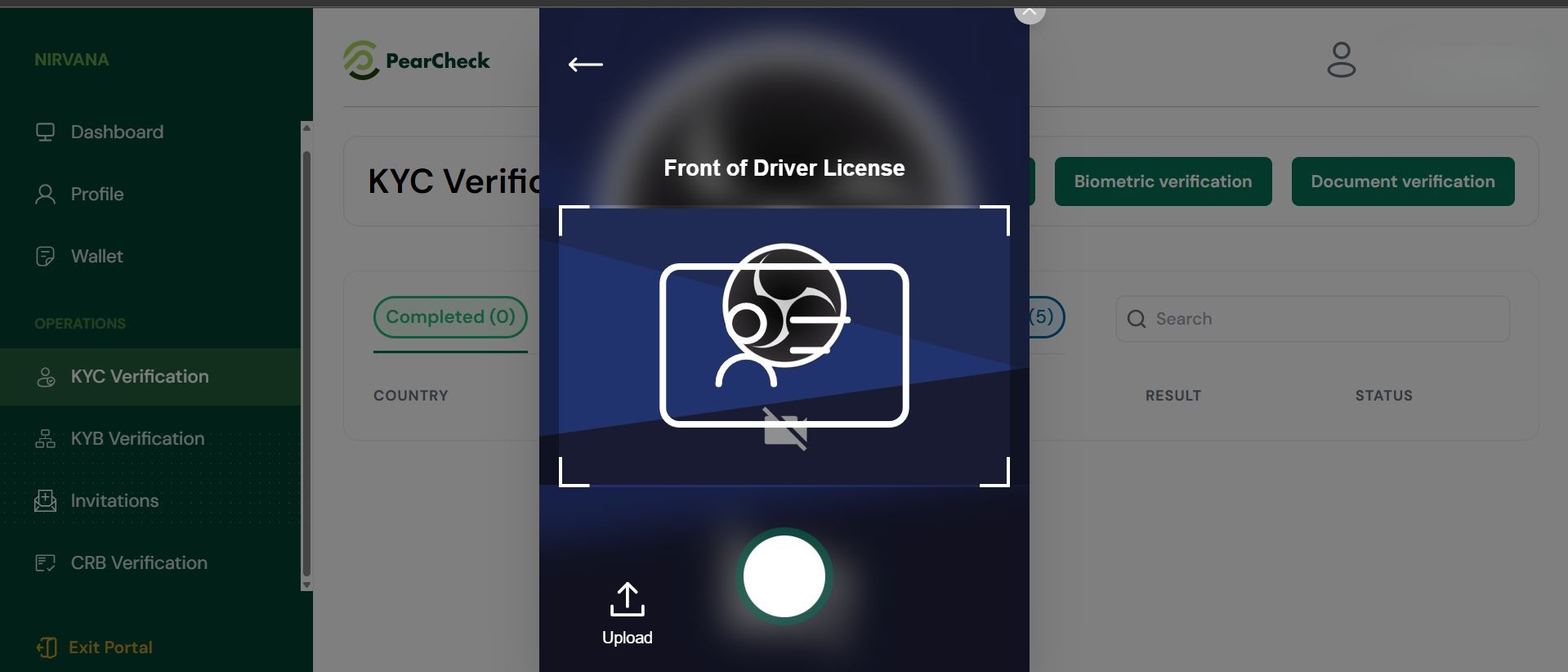
5. Upload a clear photo or scan of the ID.
6. Click **Submit**.
Use a well-lit photo with all ID corners visible.
### Upload an ID Document (Document Verification)
You can verify a user by uploading their ID directly.
Steps:
1. Click **Document Verification**.
2. Click **Get Started** on the pop-up.
3. Choose the user’s **country**.
4. Select the **document type** (e.g., Passport, National ID).
5. Upload a clear photo or scan of the ID.
6. Click **Submit**.
Use a well-lit photo with all ID corners visible.
 ### Capture a Selfie (Biometric Verification)
Biometric verification captures a live selfie to confirm identity.
Steps
1. Click **Biometric Verification**.
2. Click **Get Started**.
3. Allow camera access if prompted.
4. Follow the instructions to center the face.
5. Capture selfie → Confirm preview → Submit.
Use natural lighting, no hats or sunglasses.
### Capture a Selfie (Biometric Verification)
Biometric verification captures a live selfie to confirm identity.
Steps
1. Click **Biometric Verification**.
2. Click **Get Started**.
3. Allow camera access if prompted.
4. Follow the instructions to center the face.
5. Capture selfie → Confirm preview → Submit.
Use natural lighting, no hats or sunglasses.
 ### KYB – Business Verification
PearCheck’s KYB module helps verify registered businesses and assess risk through a step-
by-step data capture and document verification process.
* **Generate KYB Link**: Navigate to KYB Verification > Generate Link, select KYB, and enter
the email of the business contact.
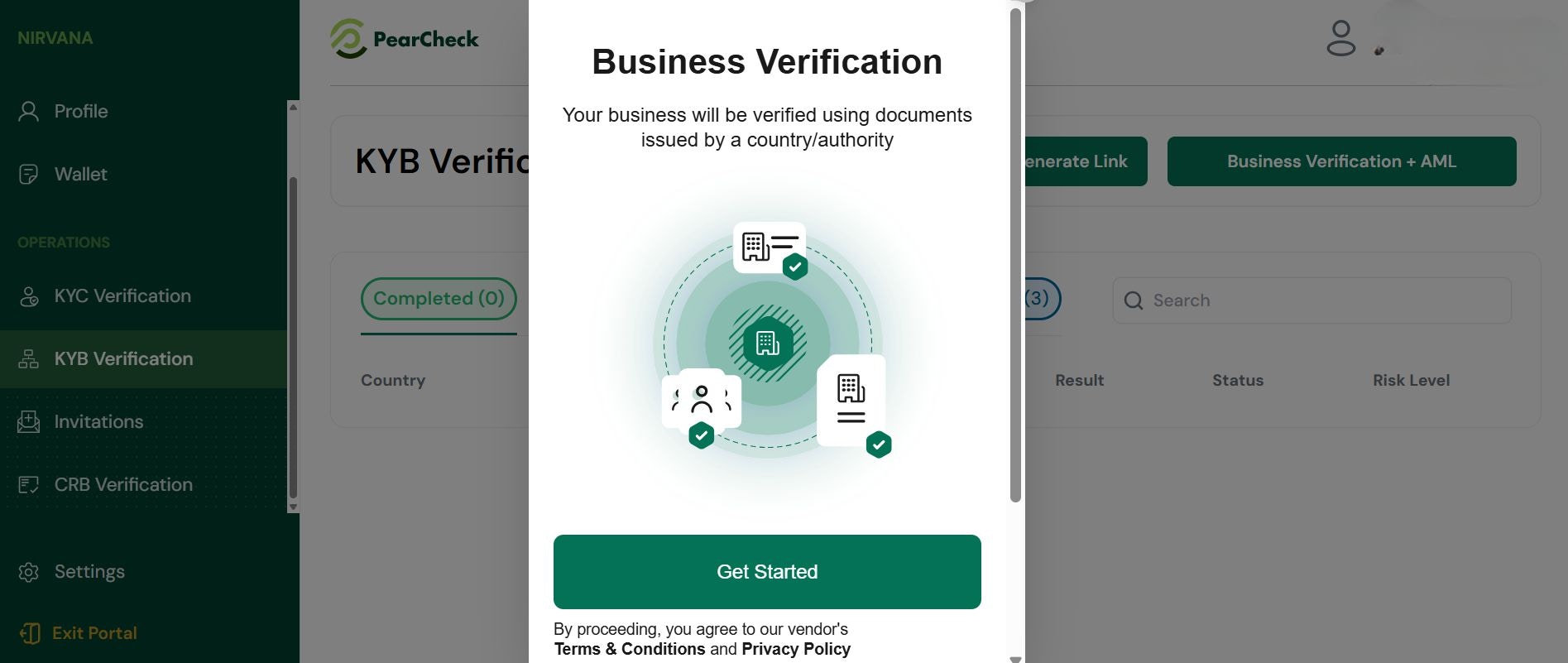
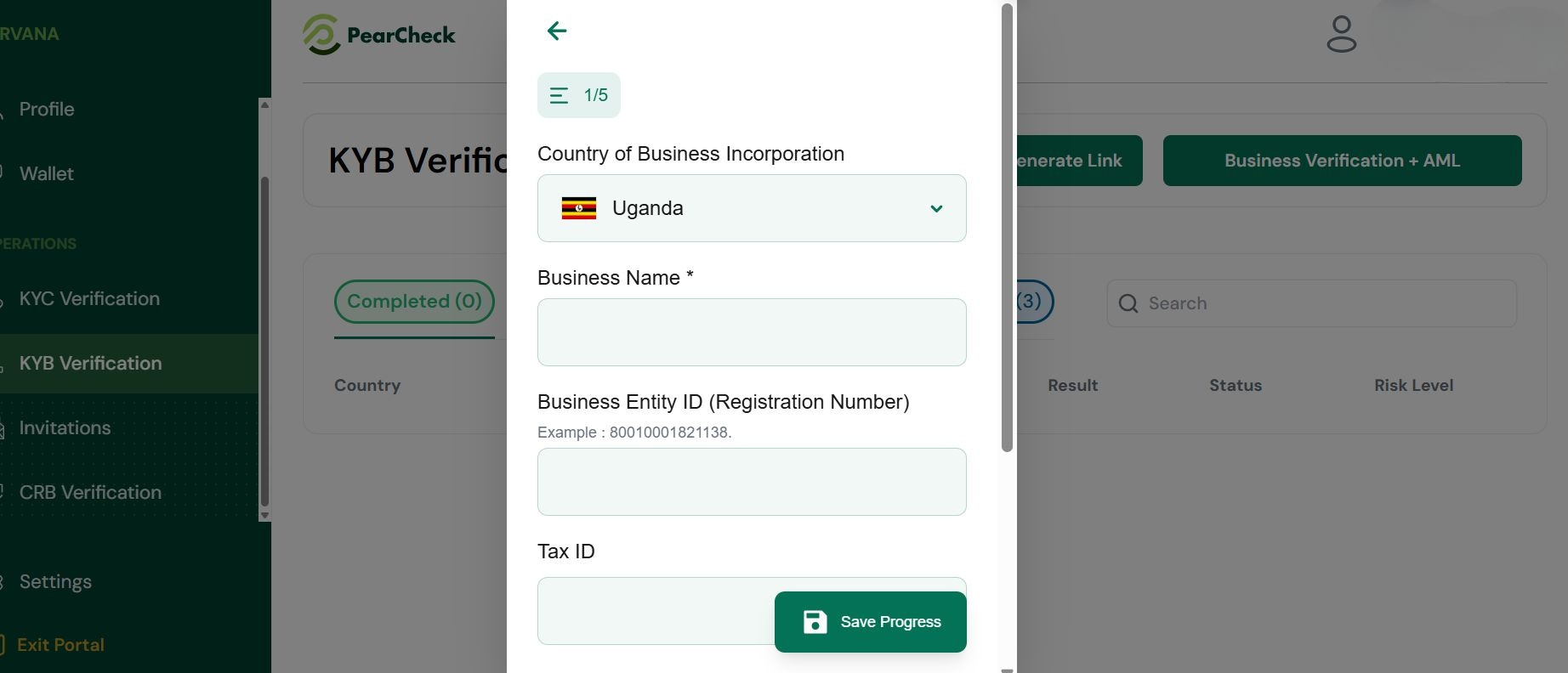
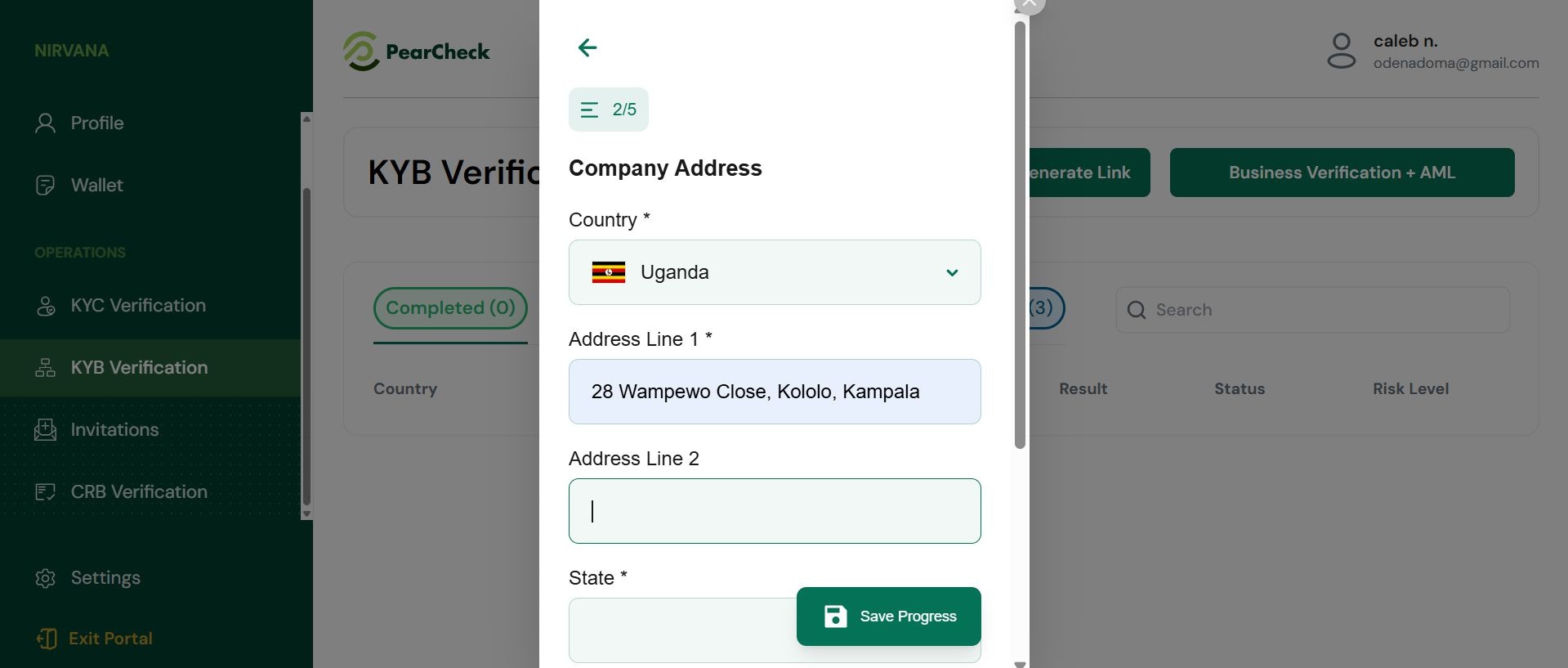
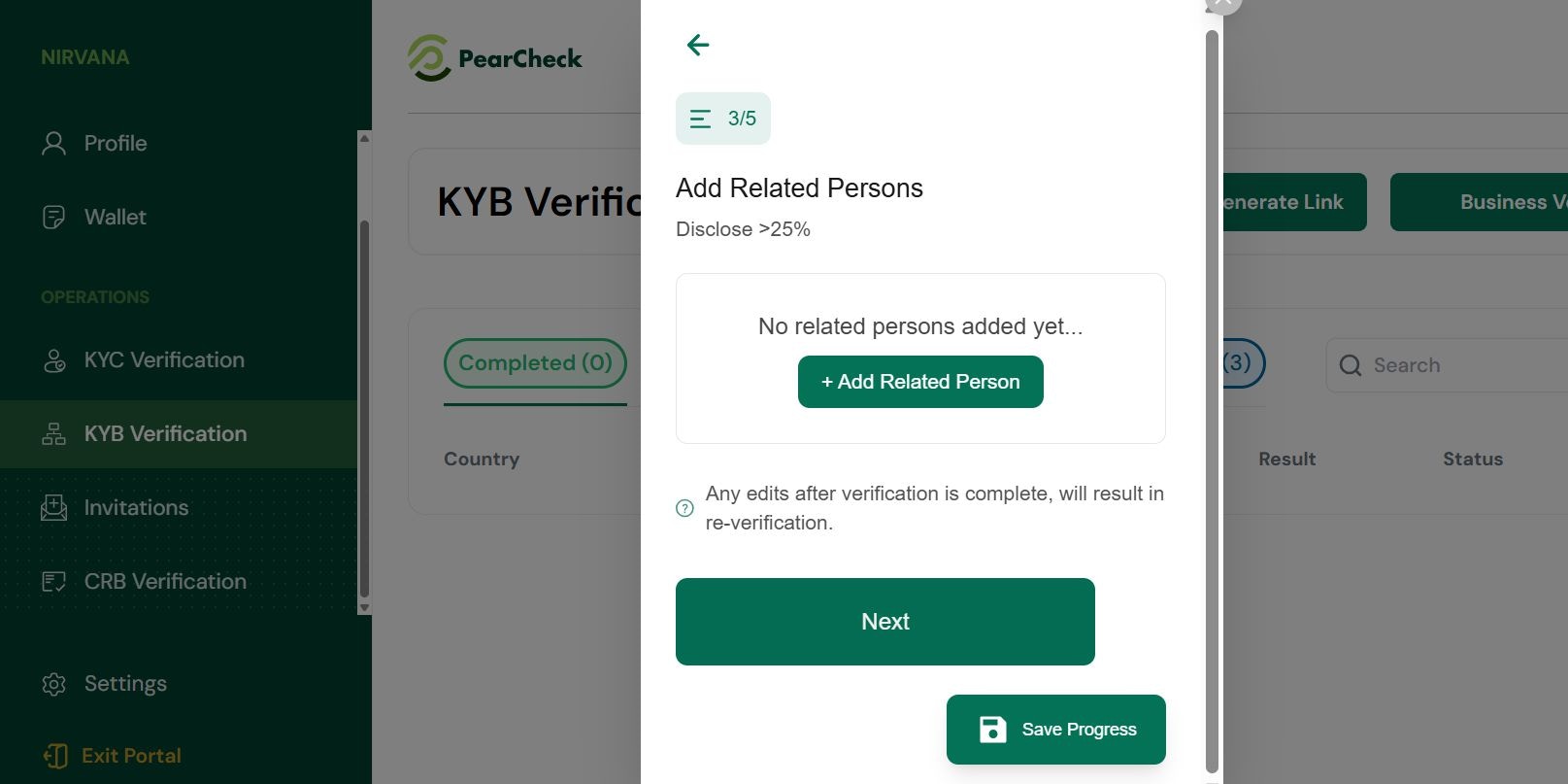
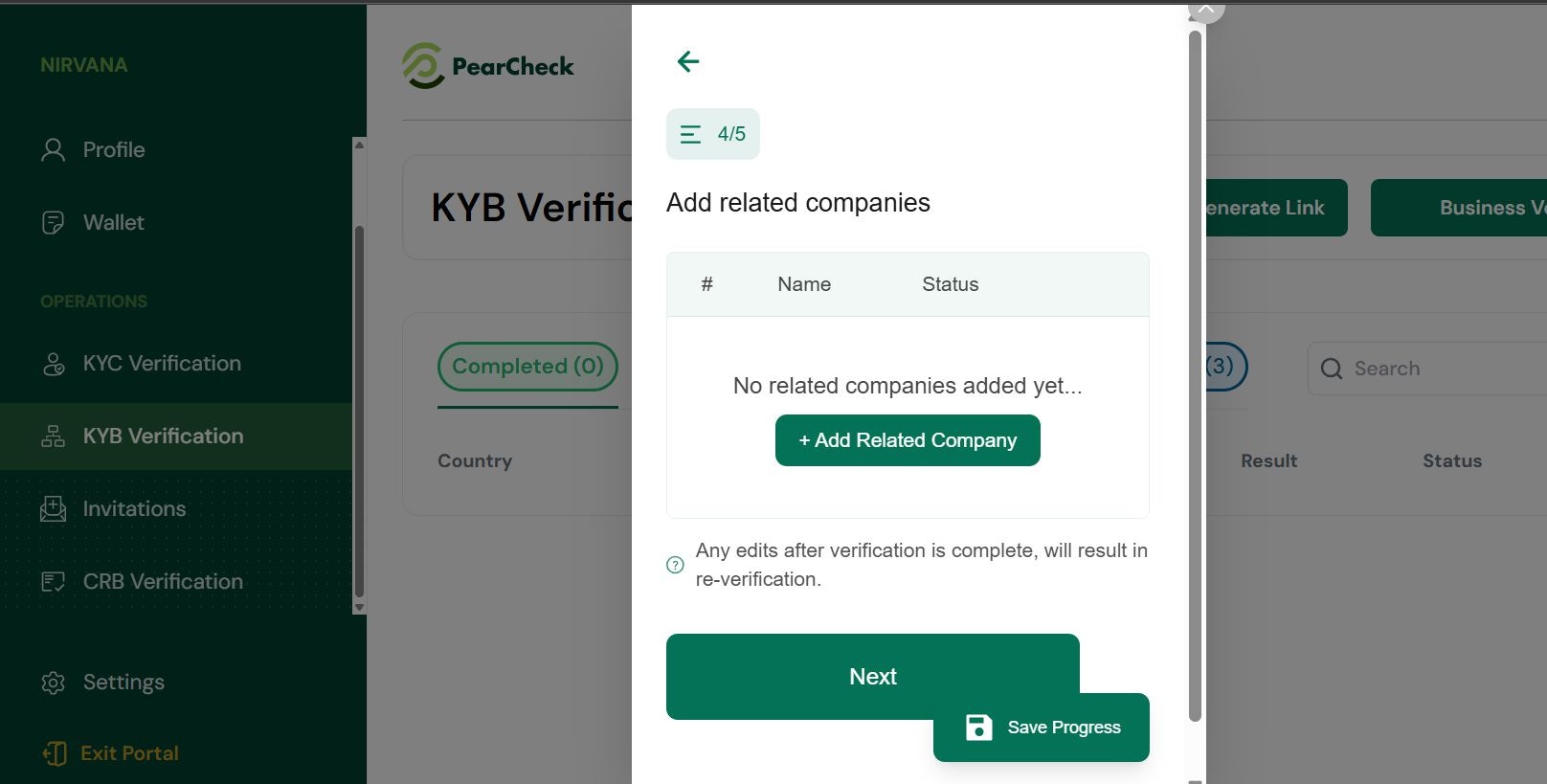
* **Start Verification Manually**: Click **Business Verification** + **AML**, then click **Get Started**.
Steps:
1. Choose the business’s country.
2. Select business document type (e.g., registration certificate).
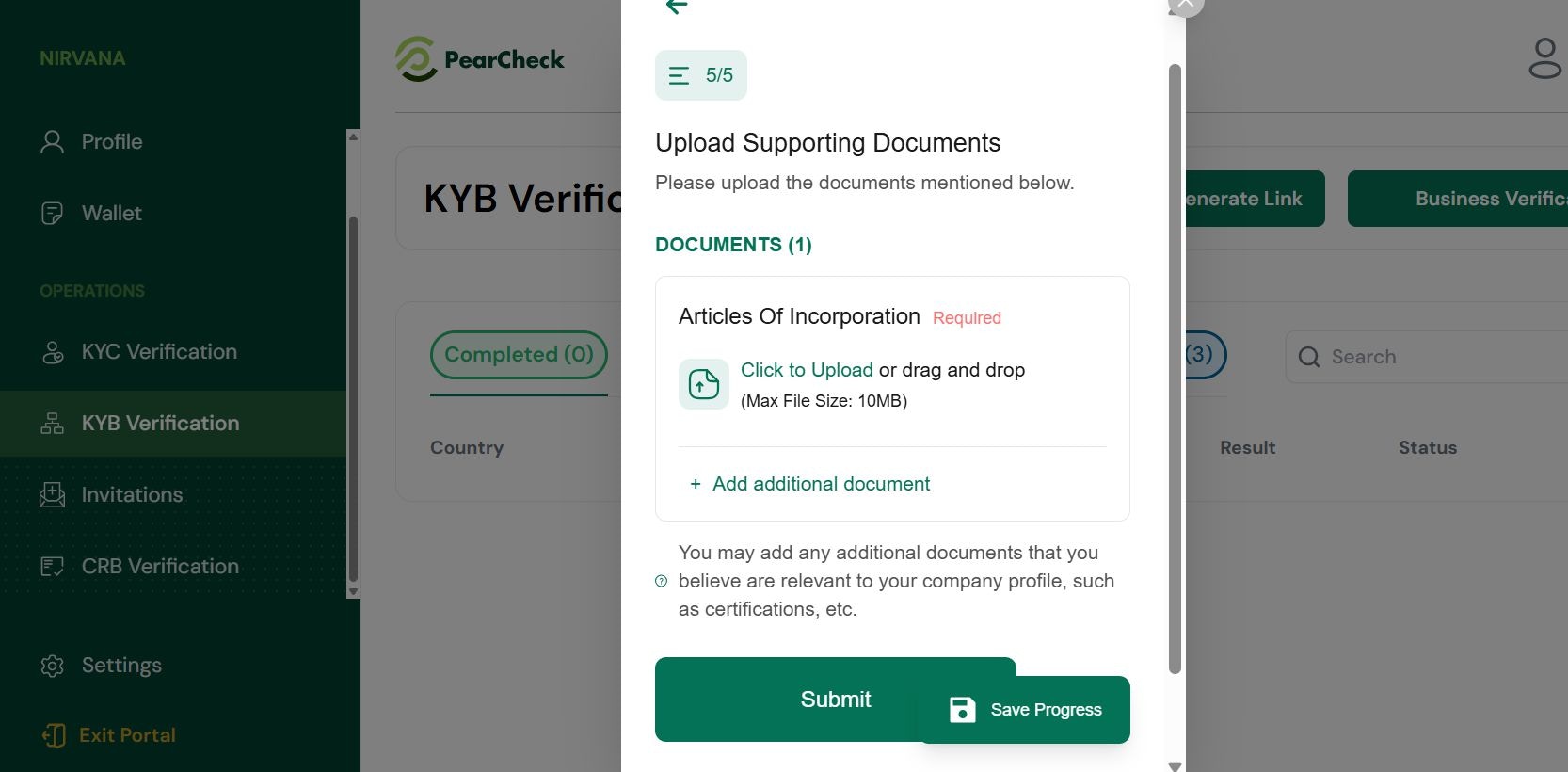
3. Upload business documents and any director/owner ID if required.
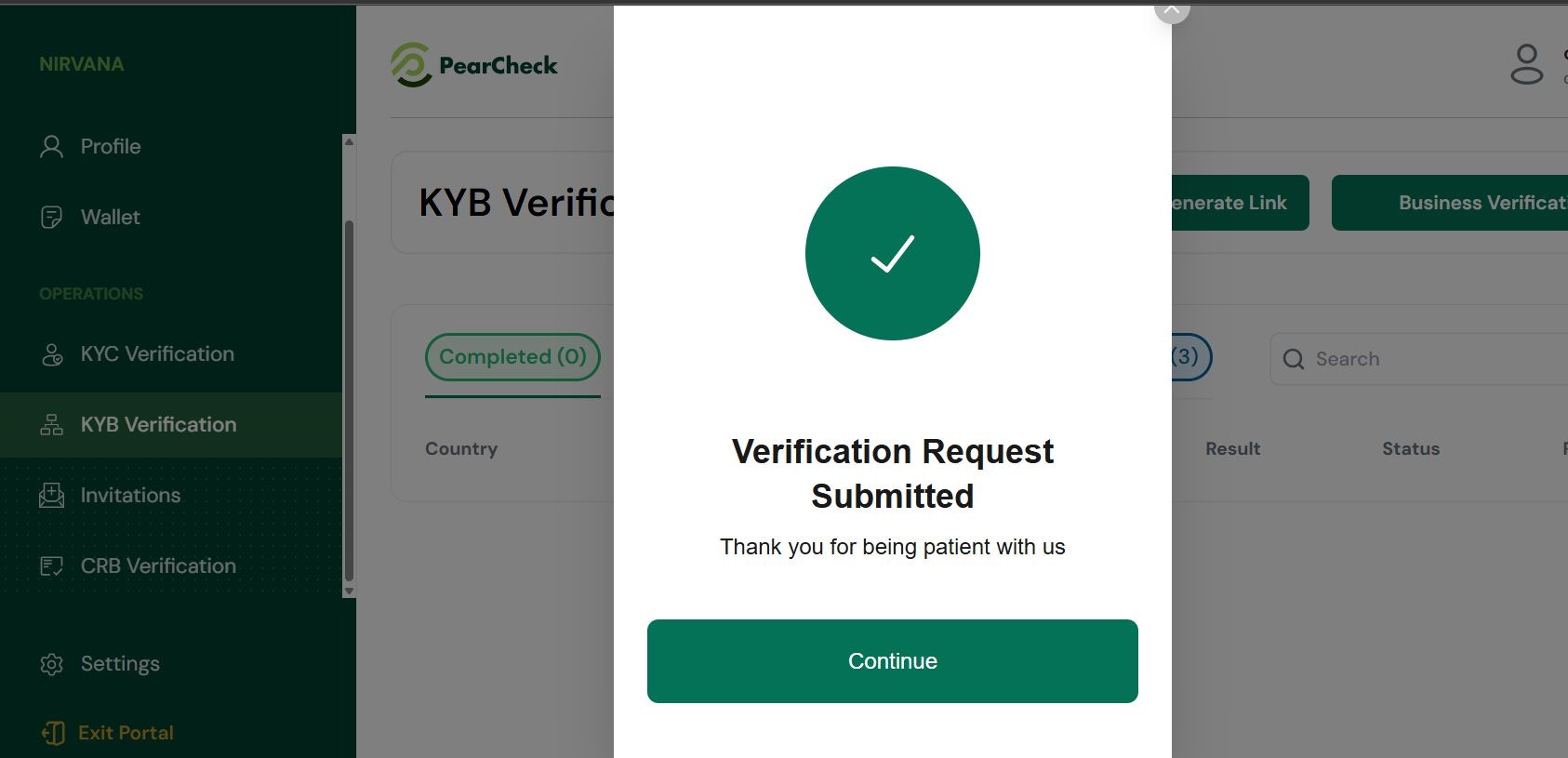
4. Click **Submit**.
The KYB dashboard tracks:
* Country, Business Name, Date Uploaded
* Result, Status (In-progress, Completed, Failed)
* Risk Level (based on AML checks)
### KYB – Business Verification
PearCheck’s KYB module helps verify registered businesses and assess risk through a step-
by-step data capture and document verification process.
* **Generate KYB Link**: Navigate to KYB Verification > Generate Link, select KYB, and enter
the email of the business contact.
* **Start Verification Manually**: Click **Business Verification** + **AML**, then click **Get Started**.
Steps:
1. Choose the business’s country.
2. Select business document type (e.g., registration certificate).
3. Upload business documents and any director/owner ID if required.
4. Click **Submit**.
The KYB dashboard tracks:
* Country, Business Name, Date Uploaded
* Result, Status (In-progress, Completed, Failed)
* Risk Level (based on AML checks)
 ### Administrator & Back-office Verification Workflow
Managing Verifications:
Administrators can review, approve, or reject submissions directly within the portal.
Steps:
1. Navigate to **KYC/KYB Verification**.
2. Click on any **In-progress** or **Failed** record to review details.
3. Click **Approve** to confirm the verification if details match.
4. Click **Reject** and provide a reason (e.g., mismatch, unclear ID) if applicable.
All approvals and rejections are logged in the system audit trail.
### Role-Based Access
PearCheck supports multiple user roles:
* **Admin**: Full access to all features, verification decisions, and reporting.
* **Verifier**: Can initiate and review verifications but cannot approve/reject.
### Image Blacklist Feature
Administrators can flag and blacklist fraudulent or reused ID images.
Steps:
1. From a verification detail screen, click **Flag Image**.
2. Select reason (e.g., duplicate, invalid).
3. Flagged images will be added to a system-wide blacklist.
### Audit Trail & Reports
* Every user action (uploads, approvals, rejections) is logged.
* Admins can export logs and audit reports from the **Dashboard** or **Reports** section.
* Reports include timestamps, user IDs, and outcome summaries.
### Statuses Explained
Each verification will appear under **KYC/KYB Verification** with a status:
* **Completed** – Verification successful.
* **In-progress** – Awaiting user action.
* **Failed** – Something went wrong (e.g., blurry image, expired ID).
Use the status filters to track progress.
## Need Help?
* Website: [www.pearcheck.com](http://www.pearcheck.com)
* Email: [support@pearcheck.com](mailto:support@pearcheck.com)
* Nigeria: +234 807 000 0000
* UK: +44 7513 073483
* US: +1 (517) 755-6070
* US Address: 600 Guadalupe st, Austin Texas USA
* Uganda Address: 28 Wampewo Close, Kololo, P .O. Box 125685, Kampala
### Administrator & Back-office Verification Workflow
Managing Verifications:
Administrators can review, approve, or reject submissions directly within the portal.
Steps:
1. Navigate to **KYC/KYB Verification**.
2. Click on any **In-progress** or **Failed** record to review details.
3. Click **Approve** to confirm the verification if details match.
4. Click **Reject** and provide a reason (e.g., mismatch, unclear ID) if applicable.
All approvals and rejections are logged in the system audit trail.
### Role-Based Access
PearCheck supports multiple user roles:
* **Admin**: Full access to all features, verification decisions, and reporting.
* **Verifier**: Can initiate and review verifications but cannot approve/reject.
### Image Blacklist Feature
Administrators can flag and blacklist fraudulent or reused ID images.
Steps:
1. From a verification detail screen, click **Flag Image**.
2. Select reason (e.g., duplicate, invalid).
3. Flagged images will be added to a system-wide blacklist.
### Audit Trail & Reports
* Every user action (uploads, approvals, rejections) is logged.
* Admins can export logs and audit reports from the **Dashboard** or **Reports** section.
* Reports include timestamps, user IDs, and outcome summaries.
### Statuses Explained
Each verification will appear under **KYC/KYB Verification** with a status:
* **Completed** – Verification successful.
* **In-progress** – Awaiting user action.
* **Failed** – Something went wrong (e.g., blurry image, expired ID).
Use the status filters to track progress.
## Need Help?
* Website: [www.pearcheck.com](http://www.pearcheck.com)
* Email: [support@pearcheck.com](mailto:support@pearcheck.com)
* Nigeria: +234 807 000 0000
* UK: +44 7513 073483
* US: +1 (517) 755-6070
* US Address: 600 Guadalupe st, Austin Texas USA
* Uganda Address: 28 Wampewo Close, Kololo, P .O. Box 125685, Kampala